
How to Choose RAM for Your Mini PC Server — Complete Guide
By Max · March 24, 2026 · Updated August 6, 2026
This article contains affiliate links. If you purchase through our links, we may earn a commission at no extra cost to you. We only recommend products we’ve thoroughly researched and verified.
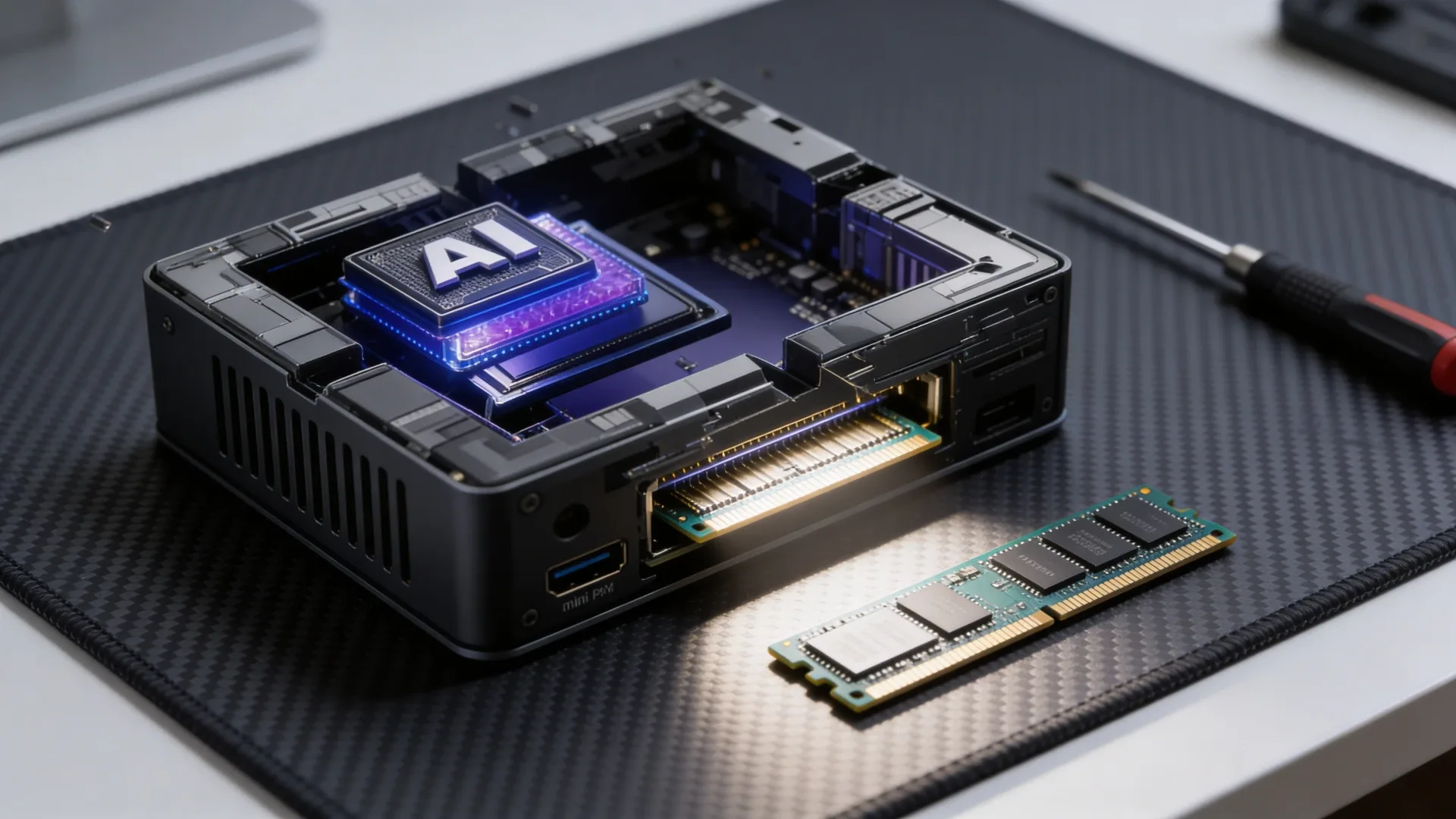
RAM is the most common upgrade point for mini PC home servers. It’s almost always user-upgradeable (with important exceptions), and matching RAM to your actual workload avoids both underpowered setups and wasted money on capacity you won’t use. This guide gives you specific numbers for every homelab workload.
The Quick Answer by Workload
| Workload | Minimum | Comfortable | Maximum Use |
|---|---|---|---|
| Pi-hole + Home Assistant only | 4GB | 8GB | 8GB sufficient |
| Docker (5–10 containers) | 8GB | 16GB | 16GB sufficient |
| Docker (15–20 containers) | 16GB | 32GB | 32GB sufficient |
| Proxmox (1–3 VMs) | 8GB | 16GB | 16GB sufficient |
| Proxmox (4–8 VMs) | 16GB | 32GB | 32GB sufficient |
| Proxmox (8–14 VMs) | 32GB | 64GB | 64GB sufficient |
| TrueNAS SCALE / ZFS | 8GB | 16GB | 1GB per TB of storage |
| Local AI (7B Q4 model, CPU) | 16GB | 32GB | 32GB |
| Local AI (7B Q4 model, GPU/ROCm) | 16GB | 16GB | 16GB + GPU VRAM |
| OPNsense + Proxmox combined | 8GB | 16GB | 16GB sufficient |
RAM Requirements by Service — Detailed
Docker Containers
Docker containers share the host OS kernel and are extremely efficient with memory. A typical container uses 50–500MB, not the 1–2GB a full VM would require.
Per-container RAM estimates:
| Container | Typical RAM |
|---|---|
| Pi-hole | 64–128MB |
| Vaultwarden | 64–128MB |
| Nginx Proxy Manager | 128–256MB |
| Uptime Kuma | 64–128MB |
| Home Assistant | 256–512MB |
| Plex Media Server | 512MB–1.5GB (scales with library size) |
| Jellyfin | 512MB–1.5GB |
| Nextcloud | 256–512MB |
| Immich (photo library) | 512MB–2GB |
| n8n (automation) | 256–512MB |
| Gitea | 256–512MB |
Total for 10 typical containers: ~3–6GB Total for 20 typical containers: ~6–12GB 16GB handles most Docker setups with headroom for growth.
Proxmox VMs
Full KVM virtual machines allocate RAM that’s unavailable to the host. Plan RAM based on what you assign to VMs.
Typical VM RAM allocations:
| VM Type | Minimum | Comfortable |
|---|---|---|
| Debian/Ubuntu server (minimal) | 512MB | 1–2GB |
| Ubuntu server with services | 1GB | 2–4GB |
| TrueNAS SCALE VM | 4GB | 8GB+ |
| OPNsense VM | 1GB | 2–4GB |
| Windows 11 VM | 4GB | 8–16GB |
| Home Assistant OS VM | 2GB | 4GB |
Total system RAM needed:
- Proxmox host overhead: ~1–2GB reserved for the hypervisor
- Formula: Sum of all VM RAM + 2GB for Proxmox host
Example: 4 VMs × 2GB + 2GB Proxmox = 10GB → get 16GB
TrueNAS SCALE and ZFS
ZFS uses RAM for the ARC (Adaptive Replacement Cache) — frequently accessed data lives in RAM for fast retrieval. More RAM = better ZFS cache performance.
ZFS RAM guidelines:
- Minimum: 8GB (ZFS requires this — usable ARC at ~4GB)
- Recommended: 1GB RAM per 1TB of storage
- Example: 4TB total storage → 8–16GB RAM is appropriate
ZFS works below these numbers but cache hit rates drop, leading to more disk reads.
Local AI (Ollama)
LLM models load into memory (RAM or VRAM) for inference. The bottleneck is how much of the model fits in GPU memory.
Model size requirements:
| Model | Quantization | RAM/VRAM Needed |
|---|---|---|
| Llama 3.2 3B | Q4 | ~2.2GB |
| Llama 3.1 7B | Q4 | ~4.5GB |
| Llama 3.1 8B | Q4 | ~5.0GB |
| Llama 3.1 8B | Q8 | ~8.5GB |
| Llama 3.1 70B | Q4 | ~42GB (CPU only) |
| Gemma 3 9B | Q4 | ~6.0GB |
On the AMD Radeon 780M, the iGPU uses unified memory — it borrows from system RAM. A 7B Q4 model needs ~4.5GB of that shared pool. With 16GB system RAM, 4.5GB for the GPU leaves 11.5GB for the OS and other processes. Workable, but 32GB is more comfortable if running other services alongside Ollama.
RAM Types: What Your Mini PC Uses
DDR5 SO-DIMM (current generation):
- Beelink SER9 PRO+: 32GB LPDDR5X (soldered — not upgradeable)
- GMKtec K11: 2× DDR5 SO-DIMM slots, up to 64GB
- Minisforum UM790 Pro: 2× DDR5 SO-DIMM slots, up to 64GB
- Minisforum MS-01: 2× DDR5 SO-DIMM slots, up to 96GB
DDR4 SO-DIMM:
- Beelink EQ14: 2× DDR4 SO-DIMM slots (upgradeable to 32GB)
- GEEKOM IT12: 2× DDR4 SO-DIMM slots, up to 64GB
- GEEKOM IT13: 2× DDR4 SO-DIMM slots, up to 96GB
Soldered RAM (not upgradeable):
- Beelink SER9 PRO+: 32GB LPDDR5X soldered — fixed, no upgrade possible
- Some budget mini PCs use soldered RAM — verify before buying if upgrade matters
How to identify your current RAM:
# On Linux
sudo dmidecode --type 17 | grep -A10 "Memory Device" | grep -E "Size:|Type:|Speed:"

# On Proxmox
cat /proc/meminfo | grep MemTotal
Upgrading RAM: Which Mini PCs Are Easily Upgradeable
Beelink EQ14
- Slots: 2× DDR4 SO-DIMM
- Stock: 16GB DDR4-3200 (typically 1× 16GB)
- Maximum: 32GB (2× 16GB DDR4-3200 SO-DIMM)
- Upgrade to: Crucial 32GB DDR4-3200 SO-DIMM
- Access: Remove bottom panel (4 screws), RAM slot visible
Note: 32GB in a single-channel slot — not dual-channel. If dual-channel matters for your workload (it does for integrated GPU performance), the EQ14’s single slot is a limitation.
Beelink SER9 PRO+
- Slots: Soldered LPDDR5X — no RAM slots
- Stock: 32GB LPDDR5X-7500MHz (soldered to motherboard)
- Maximum: 32GB — no upgrade possible
- Access: N/A — RAM cannot be upgraded
The SER9 PRO+ uses soldered LPDDR5X RAM. If you need more than 32GB, this is not the right platform — consider the GMKtec K11 or Minisforum UM790 Pro instead (both have SO-DIMM slots upgradeable to 64GB).
GMKtec K11
- Slots: 2× DDR5 SO-DIMM
- Stock: 32GB (2× 16GB DDR5-5600)
- Maximum: 64GB (2× 32GB DDR5-5600)
- Upgrade to: Crucial CT32G56C46S5 or Kingston KVR56S46BS8-32 (2 sticks)
GEEKOM IT13
- Slots: 2× DDR4 SO-DIMM
- Stock: 32GB (2× 16GB DDR4-3200)
- Maximum: 96GB (2× 48GB DDR4-3200)
- 96GB is exceptional at this price point — critical for dense VM environments
Minisforum MS-01
- Slots: 2× DDR5 SO-DIMM
- Stock: 32GB or 64GB depending on configuration
- Maximum: 96GB (2× 48GB DDR5)
How to Install RAM
General process for all SO-DIMM upgrades:
- Power off completely and unplug power
- Remove the bottom panel (usually 4–6 screws)
- Ground yourself — touch a metal part of the case or use an anti-static wrist strap
- Remove existing RAM: press the two side clips outward, the module pops up at 45°, slide out
- Insert new RAM at 45°, press down until both clips click
- Reassemble
Verify after boot:
# Check total RAM
free -h
# or
sudo dmidecode --type 17 | grep Size
Quick Price Summary
- Beelink EQ14 — DDR4 SO-DIMM, upgradeable to 32GB
- Beelink SER9 PRO+ — 32GB LPDDR5X soldered, not upgradeable
- GMKtec K11 — DDR5 SO-DIMM, upgradeable to 64GB
- Minisforum UM790 Pro — DDR5 SO-DIMM, upgradeable to 64GB
Frequently Asked Questions
Does RAM speed matter for a home server?
For CPU-only workloads (Docker containers, VMs): RAM speed has minimal impact. For AMD mini PCs with Radeon 780M iGPU: faster DDR5 (5600MHz vs. 4800MHz) improves GPU performance by 10–15% since the GPU shares the memory bus. If you’re using the GPU for transcoding or AI inference, faster RAM matters.
Is 8GB enough for Proxmox?
8GB handles Proxmox itself plus 1–3 lightweight VMs (512MB–1GB each). For a single OPNsense VM + a Debian VM: 8GB is workable. For 4+ VMs or any VM with significant workloads, upgrade to 16GB. 8GB is the practical minimum for Proxmox, not the comfortable working amount.
Can I mix RAM speeds or brands?
Yes, but both sticks will run at the lower speed. Mixing DDR5-5600 and DDR5-4800 gives you DDR5-4800 across both. For maximum performance, use matched sticks of the same brand and speed. For most home server workloads, mixing is fine.
Does more RAM reduce the power draw?
Yes slightly — RAM modules draw power (~0.5–1W per 16GB DDR5 stick). Going from 32GB to 64GB adds ~1–2W. Negligible in the context of the total system draw but real.
Check Prices
See current alternatives — 2× DDR4 SO-DIMM, upgradeable to 32GB → Check Current Price: Beelink SER9 PRO+ on Amazon — 32GB LPDDR5X soldered (not upgradeable) → Check Current Price: GMKtec K11 on Amazon — 2× DDR5 SO-DIMM, upgradeable to 64GB → Check Current Price: Minisforum UM790 Pro on Amazon — 2× DDR5 SO-DIMM, upgradeable to 64GB → Check Current Price: Minisforum MS-01 on Amazon — 2× DDR5 SO-DIMM, upgradeable to 96GB
See also: best mini PC for Proxmox guide | mini PC power consumption guide | best mini PC for home server guide