
OPNsense on a Mini PC — Firewall Setup Guide 2026
By Max · March 24, 2026 · Updated August 9, 2026
This article contains affiliate links. If you purchase through our links, we may earn a commission at no extra cost to you. We only recommend products we’ve thoroughly researched and verified.

OPNsense turns a mini PC with dual network interfaces into a full enterprise-grade firewall with stateful packet inspection, VLAN support, IDS/IPS, DNS filtering, and VPN capabilities. This guide covers installation from scratch and the essential configuration steps for a home network.
Before You Start
Requirements:
- Mini PC with two network interfaces — this is non-negotiable for a router/firewall
- Intel NICs strongly preferred (i225-V or i226-V) — OPNsense supports Realtek but Intel is more reliable
- 4GB+ RAM; 8GB+ recommended if running Suricata IDS/IPS
- 32GB+ SSD for OPNsense installation
- USB drive (8GB) for installer
- Temporary internet connection via existing router (for initial setup)
- Estimated time: 45–90 minutes for initial setup
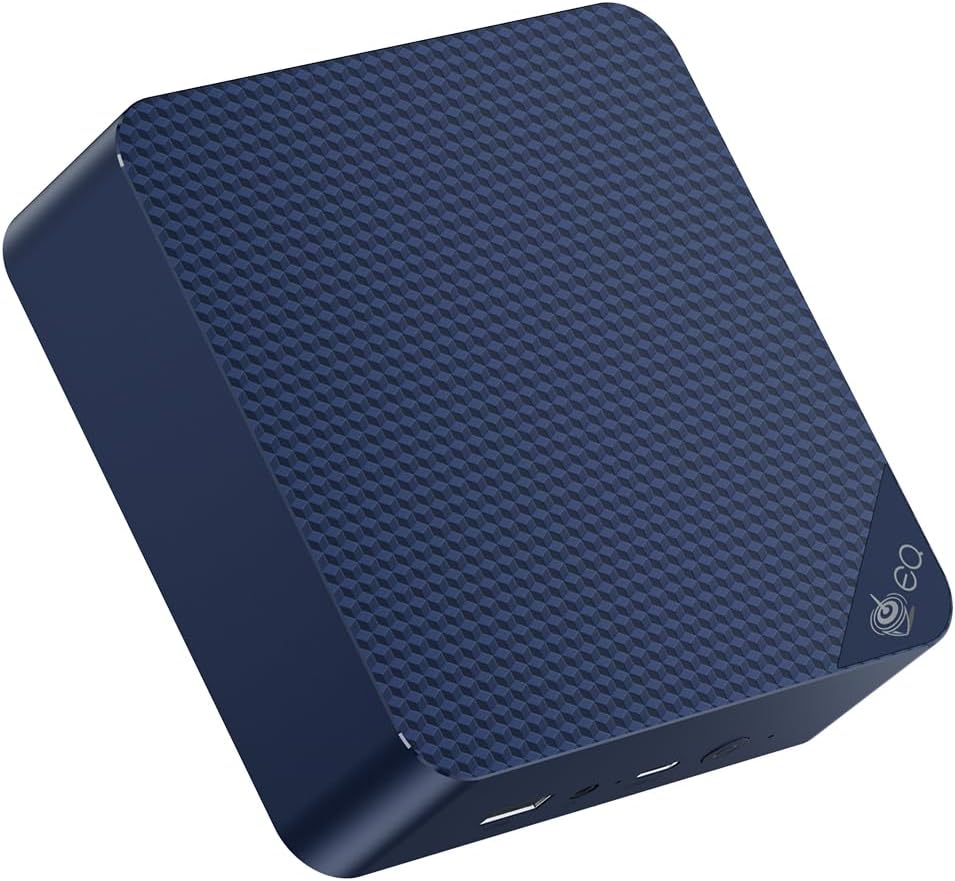
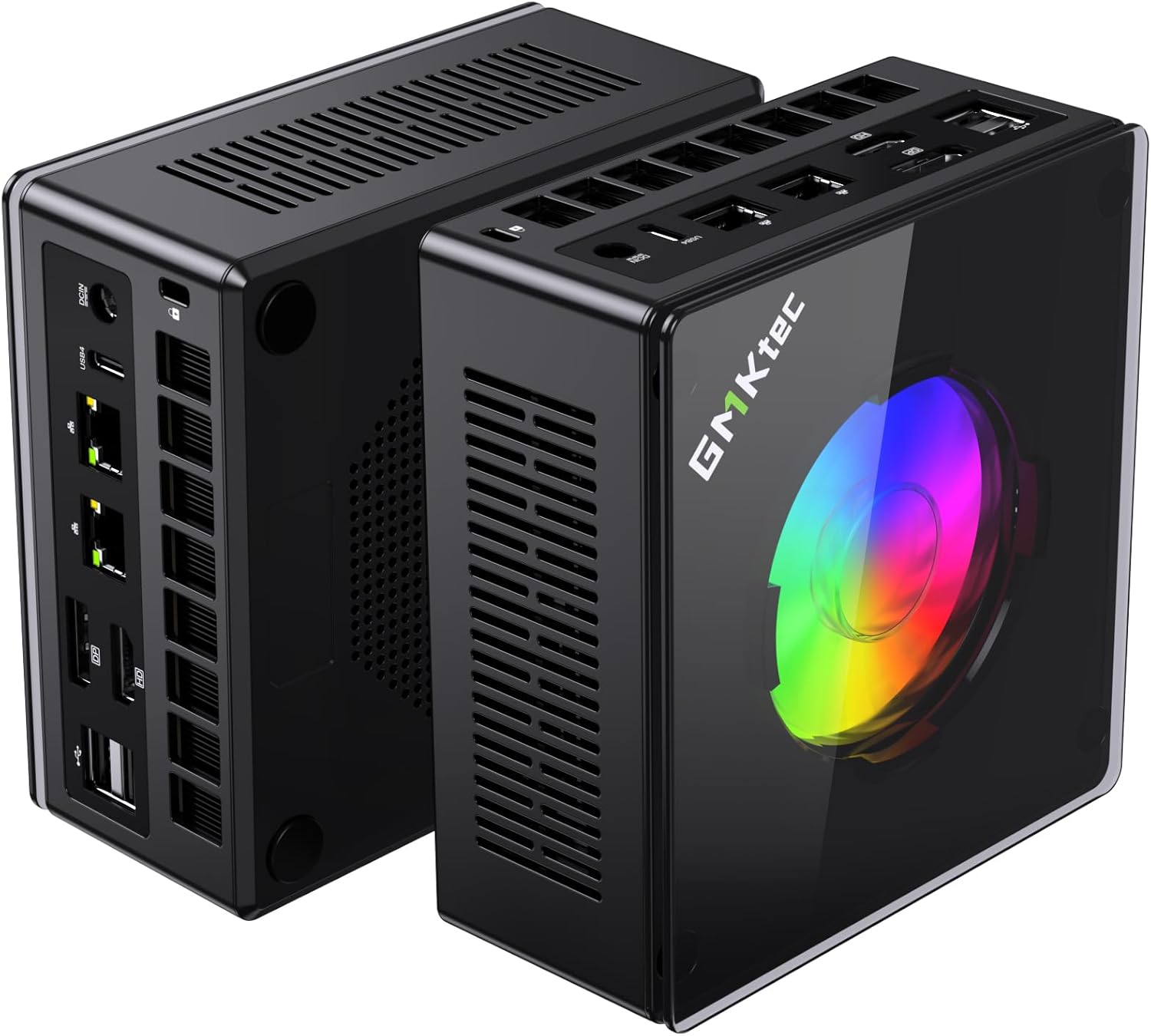
Recommended hardware: Beelink EQ14 for budget OPNsense (dual Intel i226-V, N150, ~$190), GMKtec K11 for high-performance (dual Intel i226-V, Ryzen 9, ~$639). See our best mini PC for OPNsense guide for detailed comparisons.
Understanding the Network Topology
Before installing anything, clarify what you’re building:
Internet → ISP Modem/ONT → WAN NIC (enp2s0) → [OPNsense Mini PC] → LAN NIC (enp3s0) → Switch → DevicesThe mini PC sits between your modem and your home network. All traffic flows through it. OPNsense manages DHCP, DNS, firewall rules, and optionally IDS/IPS for all connected devices.
For Proxmox users: You can run OPNsense as a Proxmox VM with NIC passthrough. Pass your WAN NIC to the OPNsense VM and your LAN NIC to the Proxmox bridge. See the Proxmox NIC passthrough section below.
Step 1: Download OPNsense
Download the OPNsense DVD installer ISO from opnsense.org/download.
- Architecture: amd64
- Image type: dvd
- Select a mirror near you
- Verify the SHA256 checksum after download
Current release as of March 2026: OPNsense 25.1
Step 2: Create the Bootable USB
# macOS/Linux
sudo dd if=OPNsense-25.1-dvd-amd64.iso of=/dev/diskX bs=4M status=progress conv=fsync

# Windows: use Rufus
# Select the ISO, write mode: DD Image, click Start
Step 3: Boot and Install OPNsense
- Boot from USB (enter BIOS → boot menu → select USB)
- OPNsense boots to a live environment — wait for the login prompt
- Log in as
installerwith passwordopnsense - The installation wizard starts automatically
In the installer:
- Accept the license
- Keymap: Select your keyboard layout
- Install (UFS): For a single disk, UFS is fine. ZFS for more features (snapshots).
- Select disk: Choose your NVMe SSD — this erases it completely
- Swap partition: 4GB or none — fine for a firewall
- Set root password
- Complete install → reboot
Remove USB when prompted.
Step 4: Assign Network Interfaces
After reboot, OPNsense boots to a console menu. The first task is assigning your NICs.
Identify your NICs:
1) Assign interfacesSelect option 1. OPNsense lists detected network interfaces, e.g.:
igc0— Intel i226-V (first NIC)igc1— Intel i226-V (second NIC)
Assignments:
- WAN:
igc0— the interface that connects to your modem/ISP - LAN:
igc1— the interface that connects to your home switch/router
Confirm. OPNsense configures the LAN with a default IP of 192.168.1.1.
Step 5: Access the Web UI
From a computer connected to the LAN side of OPNsense (connected to the LAN NIC or a switch attached to it):
Open https://192.168.1.1 in a browser. Accept the self-signed certificate.
Default credentials:
- Username:
root - Password:
opnsense
Change the root password immediately: System → Access → Users → root → Edit → New Password.
Step 6: Run the Setup Wizard
System → Wizard
| Setting | Recommended Value |
|---|---|
| Hostname | opnsense |
| Domain | home.arpa or lan |
| Primary DNS | 1.1.1.1 |
| Secondary DNS | 8.8.8.8 |
| Override DNS | Check this to use your configured DNS |
WAN Configuration: Depends on your ISP:
- DHCP: Most home internet connections — leave as default
- PPPoE: Some fiber/DSL providers — enter ISP username/password
- Static: If your ISP assigns a static IP
LAN Configuration:
- IP:
192.168.1.1(or your preference — use10.0.0.1if you want a different subnet) - Subnet:
/24(24 = 255.255.255.0 = 254 usable addresses)
Finish the wizard. OPNsense reloads.
Step 7: Update OPNsense
System → Firmware → Updates → Check for Updates → Upgrade
Always update immediately after install. OPNsense releases frequent security updates.
Step 8: Configure DHCP for Your LAN
Services → DHCPv4 → LAN
Enable DHCP and set the range (leave some addresses for static assignments):
Range start: 192.168.1.100
Range end:   192.168.1.254
Your connected devices will now receive IPs in this range automatically.
Static DHCP mappings (assign consistent IPs by MAC address):
Services → DHCPv4 → LAN → scroll to Static Mappings → Add
Enter the MAC address of each device you want a fixed IP (your home server, NAS, etc.).
Step 9: Configure DNS
Services → Unbound DNS → General
Enable Unbound DNS and check “Register DHCP leases.” This makes your DHCP-assigned hostnames resolvable by name on your network (e.g., proxmox.home resolves to your server’s IP).
Optional: Enable DNSSEC: Check “Enable DNSSEC Support” for validation of DNS responses.
Block ads via DNS (alternative to Pi-hole):
Services → Unbound DNS → Blocklists → Enable → select a blocklist (Steven Black’s list is comprehensive). This replaces Pi-hole for basic ad blocking.
Step 10: Set Up VLANs (Optional but Recommended)
VLANs separate network traffic. Common home use: separate IoT devices (smart TVs, cameras) from your main network so they can’t reach your computers.
Create a VLAN:
Interfaces → Other Types → VLAN → Add:
- Parent interface:
igc1(your LAN interface) - VLAN tag:
10(number 1–4094) - Description: IoT
Assign the VLAN interface:
Interfaces → Assignments → Add → select igc1.10 → Assign
Enable the interface, set a static IP (e.g., 192.168.10.1/24).
Add DHCP for the VLAN:
Services → DHCPv4 → IoT → Enable → set range
Add a firewall rule to block IoT from LAN:
Firewall → Rules → IoT → Add:
- Action: Block
- Destination:
192.168.1.0/24(your main LAN)
Your IoT devices get internet access but can’t reach your computers or NAS.
Step 11: Enable Suricata IDS/IPS
Suricata inspects traffic for known attack patterns. On a home internet connection, it catches malware, phishing attempts, and intrusion attempts.
Install Suricata:
System → Firmware → Plugins → search os-suricata → Install
Configure:
Services → Intrusion Detection → Administration:
- Enable: checked
- IDS mode: checked (monitor only) or IPS mode (block traffic)
- Interface: WAN
- Pattern matcher: Hyperscan (better performance)
Download rules:
Services → Intrusion Detection → Download → select “ET Open” (free, comprehensive) → Download & Update Rules
After rules download, click Apply.
CPU overhead note:
- N150 at gigabit WAN with Suricata: ~65–75% CPU (manageable)
- N150 at 500Mbps with Suricata: ~40–50% CPU (comfortable)
- Ryzen 9 K11 at gigabit with Suricata: ~15–25% CPU (very comfortable)
Running OPNsense as a Proxmox VM with NIC Passthrough
If you’re running Proxmox on your mini PC and want OPNsense as a VM:
Pass NICs to the OPNsense VM
# On the Proxmox host, find your NICs' PCI IDs
lspci | grep -i ethernet
# Example: 02:00.0 Intel Corporation Ethernet Controller I226-V
#          03:00.0 Intel Corporation Ethernet Controller I226-V

# Verify IOMMU groups are separate
ls /sys/kernel/iommu_groups/*/devices/ | grep "02:00.0\|03:00.0"
# Each NIC should be in its own IOMMU group for clean passthrough
In the Proxmox web UI: VM → Hardware → Add → PCI Device → select each NIC → enable “PCI-Express” and “Primary GPU” (only for the GPU if applicable).
Important: If you pass the Proxmox management NIC to OPNsense, you lose Proxmox web UI access. Always keep one NIC for Proxmox management.
On a dual-NIC mini PC like the EQ14 or K11: pass one NIC to OPNsense (WAN or LAN), use the other for Proxmox management + bridge to VMs.
Quick Price Summary
- Beelink EQ14 — Budget dual-NIC OPNsense host
- GMKtec K11 — High-throughput Suricata IPS
- Minisforum MS-01 — 10GbE Proxmox + OPNsense VM
Troubleshooting
Lost access to OPNsense web UI
Connect a monitor and keyboard directly to the mini PC. Use the console to reset the LAN IP (option 2 in the console menu) or reset to factory defaults (option 4).
WAN shows “no carrier”
Verify the cable between your modem and the WAN NIC is seated. Some modems need a reboot when a new device connects. Check that the WAN interface is configured for the correct connection type (DHCP vs. PPPoE).
Suricata blocks legitimate traffic
Switch from IPS mode to IDS mode temporarily (monitor only, no blocking) to confirm legitimate traffic is being flagged. In IPS mode, add suppression rules for false positives: Services → Intrusion Detection → Administration → Suppress.
DHCP not issuing addresses
Verify the DHCP range doesn’t overlap with static IPs. Check that the LAN firewall rules allow DHCP traffic (the default OPNsense rules do — only an issue if you’ve customized rules).
Recommended Hardware
See current alternatives — dual Intel i226-V 2.5GbE, budget OPNsense platform, 6W idle → Check Current Price: GMKtec K11 on Amazon — dual Intel i226-V 2.5GbE, Ryzen 9 handles Suricata IPS at gigabit with ease → Check Current Price: Minisforum MS-01 on Amazon — 10GbE + dual 2.5GbE, best for Proxmox + OPNsense VM setup
See also: best mini PC for OPNsense guide | best mini PC for firewall guide | Beelink EQ14 review