
This article contains affiliate links. If you purchase through our links, we may earn a commission at no extra cost to you. We only recommend products we’ve thoroughly researched and verified.
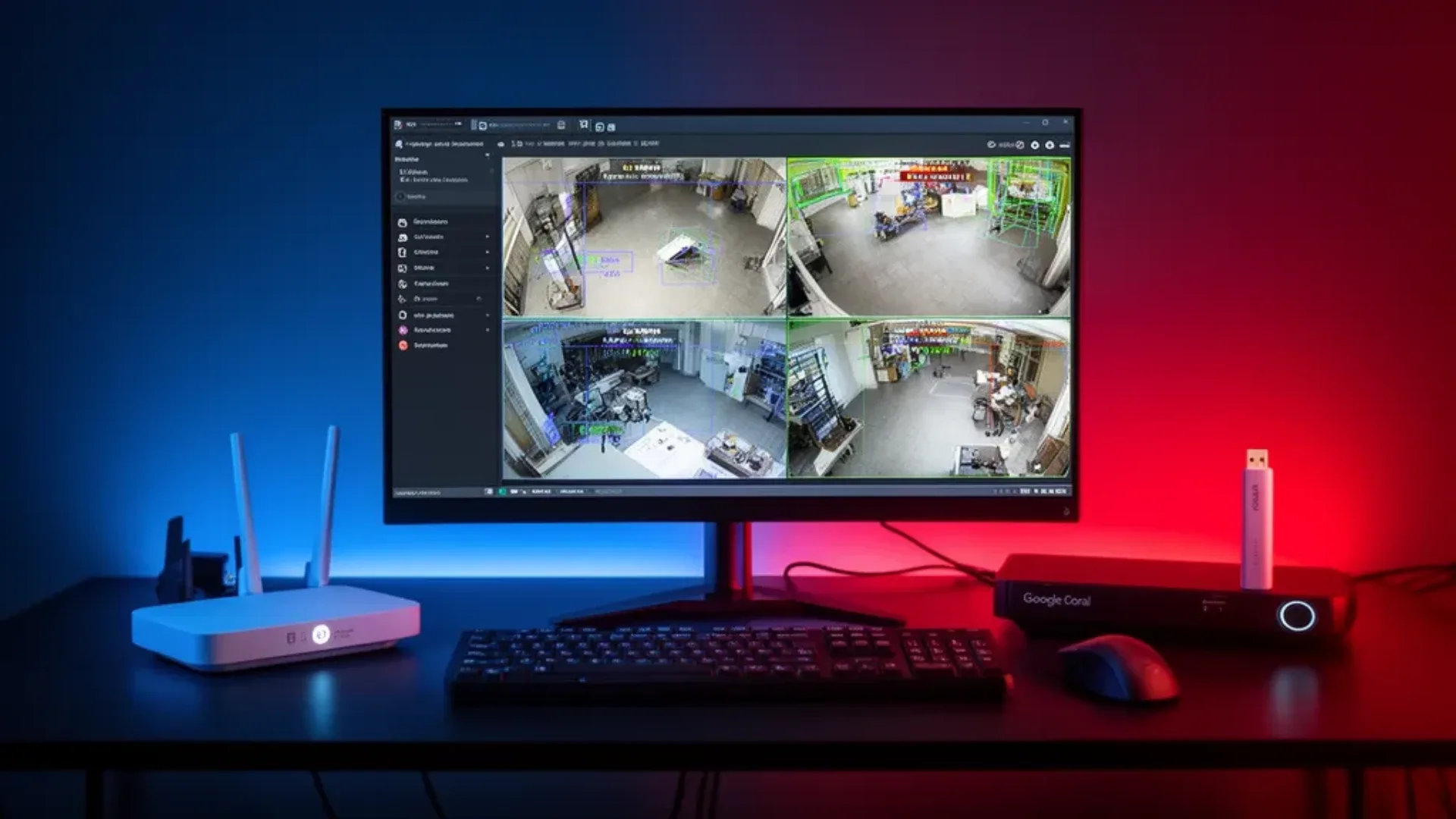
Frigate is the open-source NVR that changed home security — real-time AI object detection running locally, integrated with Home Assistant, with no cloud subscription and no footage leaving your home. On a mini PC with hardware decode, it handles 8-16 cameras at under 15% CPU load with a Google Coral accelerator.
This guide covers the complete Frigate setup on a mini PC running Ubuntu Server or as a Docker container alongside Home Assistant.
Before You Start
To check whether a given detector keeps up with your camera count, run it through the Frigate camera calculator. It applies the inference times Frigate publishes per accelerator.
Requirements:
- Mini PC running Ubuntu Server 24.04 or Debian 12 or Proxmox with a Docker LXC
- Docker and Docker Compose installed
- IP cameras with RTSP stream access
- Optional: Google Coral USB Accelerator strongly recommended for 5+ cameras
- Optional: Home Assistant instance for integration
Estimated time: 60-90 minutes for initial setup, 2-4 hours for full camera configuration
Difficulty: Intermediate — requires comfort with Docker, YAML configuration, and IP camera setup
Step 1: Verify Hardware Decode Access
Frigate uses hardware video decode to process camera streams efficiently. Confirm your mini PC’s iGPU is accessible:
# Check VA-API is available
ls /dev/dri
# Should show: card0, renderD128 (or similar)

# Install VA-API tools
sudo apt install -y vainfo intel-media-va-driver-non-free
# For AMD: amdgpu-pro-va or mesa-va-drivers

# Verify VA-API profiles
vainfo
# Should list supported decode profiles (H264, HEVC, VP9, etc.)
For Intel mini PCs GEEKOM IT12, Beelink EQ14: intel-media-va-driver-non-free is the correct driver for 12th gen and newer. For older Intel: use intel-media-va-driver.
For AMD mini PCs Beelink SER9: mesa-va-drivers is installed by default on Ubuntu 24.04.
Step 2: Create the Frigate Directory Structure
# Create Frigate config directory
sudo mkdir -p /opt/frigate/config
sudo mkdir -p /opt/frigate/media

# Set correct permissions
sudo chown -R $USER:$USER /opt/frigate
Step 3: Create the Frigate Configuration File
This is the most important step. Frigate’s config.yaml defines cameras, detectors, and recording rules.
nano /opt/frigate/config/config.yamlMinimal working configuration 2 cameras, CPU detection:
mqtt:
  enabled: true
  host: YOUR_MQTT_BROKER_IP  # or your Home Assistant IP if using the HA MQTT add-on
  port: 1883
  user: mqtt_user
  password: mqtt_password

detectors:
  cpu:
    type: cpu
    num_threads: 3

ffmpeg:
  hwaccel_args: preset-vaapi  # For Intel VA-API hardware decode

cameras:
  front_door:
    ffmpeg:
      inputs:
        - path: rtsp://admin:password@CAMERA_IP:554/stream1
          roles:
            - detect
            - record
        - path: rtsp://admin:password@CAMERA_IP:554/stream2  # Sub-stream for detect
          roles:
            - detect
    detect:
      width: 1920
      height: 1080
      fps: 5
    record:
      enabled: true
      retain:
        days: 7
        mode: motion
      events:
        retain:
          default: 14
    motion:
      mask:
        - 0,0,1920,200  # Mask top of frame (sky/static area)
    objects:
      track:
        - person
        - car
        - dog

  backyard:
    ffmpeg:
      inputs:
        - path: rtsp://admin:password@CAMERA_IP2:554/stream1
          roles:
            - detect
            - record
    detect:
      width: 1280
      height: 720
      fps: 5
    record:
      enabled: true
      retain:
        days: 7
        mode: motion

database:
  path: /config/frigate.db
Step 4: Add Google Coral USB Accelerator Recommended
If you have a Google Coral USB Accelerator:
# Install Coral USB runtime
echo "deb https://packages.coral.ai/apt-repo/ stable main" | sudo tee /etc/apt/sources.list.d/coral-edgetpu.list
curl https://packages.coral.ai/apt-repo/pool/main/libedgetpu1-std/libedgetpu1-std_16.0_amd64.deb -O
sudo dpkg -i libedgetpu1-std_16.0_amd64.deb
sudo apt update
sudo apt install -y libedgetpu1-std

# Verify Coral is visible
lsusb | grep Google
# Should show: Google Inc. Coral USB Accelerator
Update the detectors section in config.yaml:
detectors:
  coral:
    type: edgetpu
    device: usb
With the Coral replacing CPU detection, object detection inference drops from 50-100ms CPU to 10-20ms — enabling more cameras at higher FPS without CPU load.
Step 5: Create Docker Compose File
nano /opt/frigate/docker-compose.ymlversion: "3.9"
services:
frigate:
container_name: frigate
privileged: true
restart: unless-stopped
image: ghcr.io/blakeblackshear/frigate:stable
shm_size: "256mb" # Increase for more cameras (64MB per camera)
devices:
- /dev/bus/usb:/dev/bus/usb # For Google Coral USB
- /dev/dri/renderD128:/dev/dri/renderD128 # VA-API hardware decode
volumes:
- /etc/localtime:/etc/localtime:ro
- /opt/frigate/config/config.yaml:/config/config.yaml
- /opt/frigate/media:/media/frigate
- type: tmpfs
target: /tmp/cache
tmpfs:
size: 1000000000 # 1GB tmpfs for clips
ports:
- "5000:5000" # Frigate web UI
- "8554:8554" # RTSP relay
- "8555:8555/tcp" # WebRTC
- "8555:8555/udp" # WebRTC
environment:
FRIGATE_RTSP_PASSWORD: "your_rtsp_password"Step 6: Start Frigate
cd /opt/frigate
docker compose up -d

# Watch logs for startup (takes 30-60 seconds)
docker compose logs -f frigate
Look for these success messages:
[INFO] Frigate is running
[INFO] Detector(s): coral (edgetpu) initialized
[INFO] Started camera: front_door
[INFO] Started camera: backyard
Access Frigate UI at http://MINI_PC_IP:5000
Step 7: Integrate with Home Assistant
MQTT Integration
In Home Assistant:
- Install the Mosquitto Broker add-on if running HAOS
- Go to Settings → Integrations → Add → MQTT
- Frigate automatically publishes detection events to MQTT
Frigate Integration
In Home Assistant:
- Settings → Integrations → Add → Frigate
- Enter your Frigate URL:
http://MINI_PC_IP:5000 - Frigate integration creates:
- Camera entities for each Frigate camera
- Binary sensors for person/car/dog detection per camera
- Image sensors for last detected person snapshot
- Sensor for camera FPS, detection FPS, and inference speed
Home Assistant Automation Example
# Notify when person detected at front door
automation:
  - alias: "Front Door Person Alert"
    trigger:
      - platform: mqtt
        topic: "frigate/front_door/person"
        payload: "1"
    action:
      - service: notify.mobile_app_your_phone
        data:
          title: "Front Door"
          message: "Person detected"
          data:
            image: /api/frigate/notifications/{{trigger.payload_json.after.id}}/thumbnail.jpg
Hardware Performance by Mini PC
| Mini PC | Cameras Without Coral | Cameras With Coral | Idle CPU No Detection |
|---|---|---|---|
| Beelink EQ14 N150 | 3-4 | 8-10 | ~15% |
| GEEKOM IT12 i5-12450H | 5-6 | 12-16 | ~10% |
| GEEKOM IT15 Ultra 9 285H | 6-8 | 16+ | ~8% |
| Beelink SER9 Ryzen 7 H255 | 4-5 | 10-12 | ~12% |
Intel mini PCs benefit from Quick Sync for hardware decode — more efficient than AMD VA-API for Frigate’s specific decode pattern.
Camera Sub-Stream Configuration
Using a dedicated sub-stream for detection dramatically reduces bandwidth and CPU:
cameras:
  front_door:
    ffmpeg:
      inputs:
        # Main stream: full resolution for recording
        - path: rtsp://admin:password@CAMERA_IP:554/stream1
          roles:
            - record
        # Sub-stream: lower resolution for detection
        - path: rtsp://admin:password@CAMERA_IP:554/stream2
          roles:
            - detect
    detect:
      width: 640   # Sub-stream resolution
      height: 360
      fps: 5
    record:
      enabled: true
Most modern IP cameras support dual-stream output. The sub-stream at 640×360 uses 1/9 the pixels of a 1920×1080 main stream — dramatically less CPU for the detection model inference.
Troubleshooting Common Issues
“Failed to connect to camera”
# Test RTSP stream directly
ffplay rtsp://admin:password@CAMERA_IP:554/stream1

# Or with ffprobe
ffprobe rtsp://admin:password@CAMERA_IP:554/stream1
Common causes: incorrect camera IP, wrong RTSP path, camera requires authentication but credentials are wrong, camera only accepts H.264 not H.265.
“Detector not initializing” Coral
# Check Coral is visible to the container
docker exec frigate ls /dev/bus/usb/001/

# Check udev rules for Coral
lsusb -v | grep Google
Ensure the container runs with privileged: true and the /dev/bus/usb device mount is present.
High CPU despite VA-API
# Verify VA-API hardware decode is active
docker exec frigate ffmpeg -hwaccel vaapi -hwaccel_device /dev/dri/renderD128 \
  -i rtsp://CAMERA_IP:554/stream1 -f null -
If VA-API falls back to software decode, check that the render device path matches your system’s /dev/dri/ output.
Who Should Skip This Comparison
Frequently Asked Questions
How much storage does Frigate use?
With motion-only recording retention at 7 days: approximately 1-3GB per camera per day at 1080p H.264. For 4 cameras retaining 7 days of motion clips: 28-84GB. Always-on recording multiplies this by 5-10. Separate recording storage from the OS drive — an external USB HDD or NAS mount works well.
Can Frigate use my existing IP camera DVR?
Frigate replaces or supplements dedicated DVRs. It pulls RTSP streams from any camera that supports RTSP, including cameras already connected to a DVR via ONVIF. Many users run Frigate alongside an existing DVR — Frigate handles AI detection, the DVR handles continuous recording to local hard drives.
What objects can Frigate detect?
Frigate’s default detection model detects: person, bicycle, car, motorcycle, airplane, bus, train, truck, boat, traffic light, fire hydrant, stop sign, parking meter, bench, bird, cat, dog, horse, sheep, cow, elephant, bear, zebra, giraffe, backpack, umbrella, handbag, suitcase. Custom models can be trained for additional objects.
Does Frigate support PTZ cameras?
Frigate 0.13+ added PTZ camera support with auto-tracking — the camera follows a detected person automatically. Configure PTZ controls in the camera section of config.yaml using ONVIF commands. Auto-tracking requires the object to enter and stay in frame long enough for Frigate to lock on.
What mini PC is best for Frigate NVR?
The GEEKOM IT12 is the best mini PC for Frigate in 2026. Intel Quick Sync handles hardware video decode for 8-12 cameras simultaneously, and the i5-12450H handles Frigate’s object detection model without a Coral TPU for 4-6 cameras. Add a Google Coral USB Accelerator for 8+ cameras with CPU under 15%.
Do I need a Google Coral for Frigate on a mini PC?
No — for 1-4 cameras. Frigate’s built-in CPU detection handles 4 cameras at 5 FPS detection rate with 30-50% CPU on a modern 4-core mini PC. For 5+ cameras at full-frame object detection, a Google Coral USB Accelerator offloads detection to its 4 TOPS Edge TPU, dropping CPU to under 15% regardless of camera count.
Can Frigate run in Home Assistant on a mini PC?
Frigate runs as a Home Assistant add-on or as a standalone Docker container. The add-on approach is simpler but only available in Home Assistant OS or Supervised installs. The Docker container approach works on any Linux mini PC and integrates with Home Assistant via the Frigate integration and MQTT.
How many cameras can Frigate handle on a mini PC?
With hardware decode and a Google Coral TPU: 12-16 cameras at 5 FPS object detection on a 4-8 core mini PC. Without Coral: 4-6 cameras with reasonable CPU load. Camera count scales with the decode API — Intel Quick Sync handles more simultaneous decode streams than AMD VA-API for Frigate specifically.
What cameras work best with Frigate?
IP cameras with H.264 or H.265 RTSP streams work with Frigate. Recommended: Reolink RLC-510A, Amcrest IP8M-2496EW, and Hikvision DS-2CD cameras. Avoid cameras that output only MJPEG streams — they require much more bandwidth and CPU for decode. Sub-streams for detection at lower resolution alongside main streams for recording reduces CPU significantly.