
This article contains affiliate links. If you purchase through our links, we may earn a commission at no extra cost to you. We only recommend products we’ve thoroughly researched and verified.
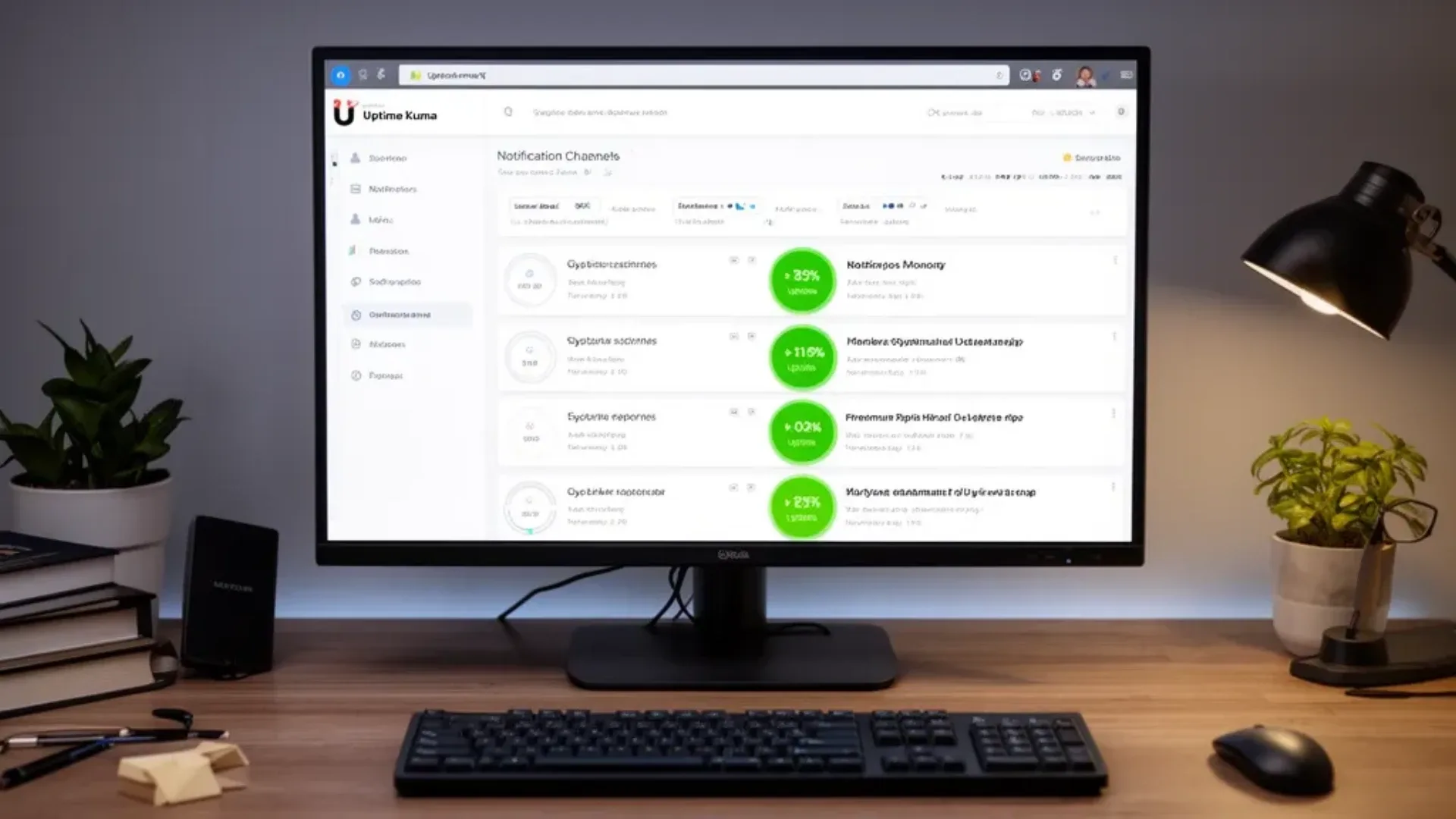
When your home server goes down, Uptime Kuma tells you before your family does. It monitors every service on your mini PC — Home Assistant, Jellyfin, Nextcloud, Pi-hole, Vaultwarden — and fires an alert to your phone the moment something stops responding. Setup takes 5 minutes and uses less than 200MB of RAM.
What you need:
- A mini PC running Ubuntu Server 24.04 LTS with Docker installed
- A Telegram account for mobile alerts — free and reliable
Step 1: Deploy Uptime Kuma
mkdir -p ~/uptime-kuma
nano ~/uptime-kuma/docker-compose.ymlservices:
uptime-kuma:
image: louislam/uptime-kuma:latest
container_name: uptime-kuma
ports:
- "3001:3001"
volumes:
- ./data:/app/data
restart: unless-stoppedcd ~/uptime-kuma
docker compose up -dAccess Uptime Kuma at http://192.168.1.100:3001. Create an admin username and password on first access.
Step 2: Add Your First Monitors
In the Uptime Kuma dashboard → Add New Monitor.
HTTP/HTTPS Monitor recommended for web services
| Setting | Value |
|---|---|
| Monitor Type | HTTP s |
| Friendly Name | Home Assistant |
| URL | http://192.168.1.100:8123 |
| Heartbeat Interval | 60 seconds |
| Retries | 3 |
Uptime Kuma checks the URL every 60 seconds. If it gets 3 consecutive failures, it marks the service as DOWN and fires an alert.
For HTTPS services behind NPM: use the HTTPS URL — Uptime Kuma verifies the certificate.
Common keyword check: For services that may return 200 but be broken, add a keyword:
| Setting | Value |
|---|---|
| Monitor Type | HTTP s - Keyword |
| Keyword | Home Assistant text that only appears when HA is working |
TCP Port Monitor for services without HTTP
| Setting | Value |
|---|---|
| Monitor Type | TCP Port |
| Friendly Name | Mosquitto MQTT |
| Hostname | 192.168.1.100 |
| Port | 1883 |
Ping Monitor for router/device availability
| Setting | Value |
|---|---|
| Monitor Type | Ping |
| Friendly Name | Router |
| Hostname | 192.168.1.1 |
DNS Monitor
| Setting | Value |
|---|---|
| Monitor Type | DNS |
| Friendly Name | Pi-hole DNS |
| Hostname | 192.168.1.100 |
| Port | 53 |
| Resolver Server | 192.168.1.100 |
| Resolver Port | 53 |
Docker Container Monitor
Uptime Kuma monitors Docker containers directly:
| Setting | Value |
|---|---|
| Monitor Type | Docker Container |
| Container Name / ID | homeassistant |
| Docker Host | local or configure a remote Docker daemon |
This shows whether the container is running vs the actual service health.
Step 3: Configure Telegram Alerts
Telegram is the most reliable free notification method for Uptime Kuma.
Create a Telegram Bot
- Open Telegram → search for @BotFather
- Send
/newbot - Give it a name: “My Home Server Status”
- Username:
myhomeserver_monitor_botmust end inbot - Copy the API token looks like:
123456789:ABCdef...
Get Your Chat ID
- Start a conversation with your new bot by sending it
/start - Navigate to:
https://api.telegram.org/bot<YOUR-TOKEN>/getUpdates - Look for
"chat":{"id":123456789}in the response — this is your Chat ID
Add to Uptime Kuma
Settings → Notifications → Add Notification:
| Setting | Value |
|---|---|
| Notification Type | Telegram |
| Bot Token | your bot token |
| Chat ID | your chat ID |
| Send Test | click to verify |
Apply this notification to all monitors: on each monitor → Edit → Notification → select Telegram.
Step 4: Set Up a Status Page
A status page lets family members check service status without accessing your dashboard.
Status Pages → New Status Page:
- Name: “Home Server Status”
- Slug:
homeaccessible athttp://192.168.1.100:3001/status/home
Add monitors to the status page — group them by category:
| Group | Monitors |
|---|---|
| Media | Jellyfin, Plex |
| Smart Home | Home Assistant, Mosquitto |
| Storage | Nextcloud, Immich |
| Network | Pi-hole, Router |
| Tools | Vaultwarden, Portainer |
Toggle monitors to show or hide them on the public page. The status page shows current status and 90-day uptime history.
For sharing with family: save the status page URL as a bookmark. For internet access: expose behind NPM with HTTPS.
Complete Home Server Monitor List
Here’s a full recommended monitor configuration for a standard home server stack:
| Service | Monitor Type | URL/Host | Port |
|---|---|---|---|
| Home Assistant | HTTP | http://192.168.1.100:8123 | — |
| Jellyfin | HTTP | http://192.168.1.100:8096 | — |
| Nextcloud | HTTP | http://192.168.1.100:8080 | — |
| Pi-hole | HTTP | http://192.168.1.100:8080/admin | — |
| Vaultwarden | HTTP | http://192.168.1.100:80 | — |
| Portainer | HTTP s | https://192.168.1.100:9443 | — |
| Nginx Proxy Manager | HTTP | http://192.168.1.100:81 | — |
| Gitea | HTTP | http://192.168.1.100:3000 | — |
| Mosquitto MQTT | TCP Port | 192.168.1.100 | 1883 |
| Mealie | HTTP | http://192.168.1.100:9925 | — |
| Uptime Kuma self | HTTP | http://192.168.1.100:3001 | — |
| Router | Ping | 192.168.1.1 | — |
Additional Notification Providers
Gotify Self-Hosted Push Notifications
Gotify is a self-hosted push notification server — no third-party service involved:
# Add to any docker-compose.yml
  gotify:
    image: gotify/server:latest
    container_name: gotify
    ports:
      - "8090:80"
    volumes:
      - ./gotify-data:/app/data
    restart: unless-stopped
Install the Gotify app on Android or use the web interface. In Uptime Kuma → Notifications → Gotify:
- Server URL:
http://192.168.1.100:8090 - Application Token: create in Gotify → Apps → Create Application
ntfy.sh Self-Hosted or Free Cloud
ntfy is an HTTP-based push notification service with mobile apps:
# Subscribe on your phone (ntfy app) to channel "my-home-server"
# In Uptime Kuma → Notifications → ntfy:
# Topic: my-home-server
# Server: https://ntfy.sh (cloud, free) or your self-hosted instance
Maintenance Mode
When you’re doing planned maintenance upgrading services, rebooting, pause monitors to avoid false alerts:
Monitor → Actions → Pause. All paused monitors show as “Maintenance” on the status page and don’t fire alerts.
For scheduled maintenance windows: Maintenance → Add Maintenance:
- Title: “Monthly updates”
- Cron:
0 3 * * 0every Sunday at 3am - Duration: 60 minutes
Monitors associated with the maintenance window are automatically paused during that window.
Integrating with Homepage Dashboard
If you’re using the Homepage dashboard port 3000, Uptime Kuma integrates as a widget:
# In ~/homepage/config/services.yaml
- Management:
    - Uptime Kuma:
        icon: uptime-kuma.png
        href: http://192.168.1.100:3001
        description: Service monitoring
        widget:
          type: uptimekuma
          url: http://192.168.1.100:3001
          slug: home   # Your status page slug
This shows a summary of monitor statuses in the Homepage dashboard.
Who Should Skip This Comparison
Frequently Asked Questions
How do I get alerted if the entire mini PC goes down?
Uptime Kuma can’t alert you if the machine running it goes offline. For machine-level alerts: a second monitoring instance on a different device a $15 Raspberry Pi Zero W, a cloud micro VM, or UptimeRobot’s free tier for external monitoring pings your external IP or a publicly accessible service. For home use, UptimeRobot’s free tier 50 monitors, 5-minute checks covers external access monitoring without additional hardware.
Can Uptime Kuma monitor services on other machines on my network?
Yes. Enter the IP of the other machine when adding a monitor — Uptime Kuma monitors any host reachable from the mini PC’s network. Use this to monitor a Raspberry Pi running zigbee2mqtt or a separate NAS.
What’s the difference between the heartbeat interval and retries?
Heartbeat interval is how often Uptime Kuma checks a service default 60 seconds. Retries is how many consecutive failures trigger a DOWN alert default 3. With 60-second intervals and 3 retries, a service must be down for 3+ minutes before you get an alert — this prevents false alarms from brief network hiccups.
What is Uptime Kuma and what does it monitor?
Uptime Kuma is a self-hosted uptime monitoring tool. It checks services via HTTP/HTTPS watching for a status code or keyword, TCP port availability, DNS resolution, ping, Docker container health, and more. When a service goes down, it sends instant alerts via Telegram, Slack, Discord, email, webhooks, or PushOver. It provides a public status page so family members can check service status without accessing your dashboard.
Does Uptime Kuma need to be on a separate machine from the services it monitors?
No, and many users run it on the same machine as their home server services. If the mini PC itself goes offline, Uptime Kuma goes down too — but this is acceptable for home use since you’d notice the outage another way. For critical alerting on machine-level outages, a second tiny device Raspberry Pi Zero, spare router can run a basic ping monitor. For most home servers, same-machine monitoring is sufficient.
What alert integrations does Uptime Kuma support?
Telegram, Slack, Discord, Microsoft Teams, email SMTP, PushOver, PushBullet, Gotify self-hosted, webhooks, ntfy.sh self-hosted push, Signal via CallMeBot, Twilio SMS, and 50+ additional notification providers. Most home server users configure Telegram or a mobile push service for immediate phone alerts.
Can I share a public status page with family or users?
Yes. Uptime Kuma includes a public status page builder — choose which monitors to show, add a custom logo and description, and share the URL. Family members can check whether your Jellyfin, Home Assistant, or Nextcloud is down without accessing your dashboard. You can also configure an access code to limit who can view the status page.