
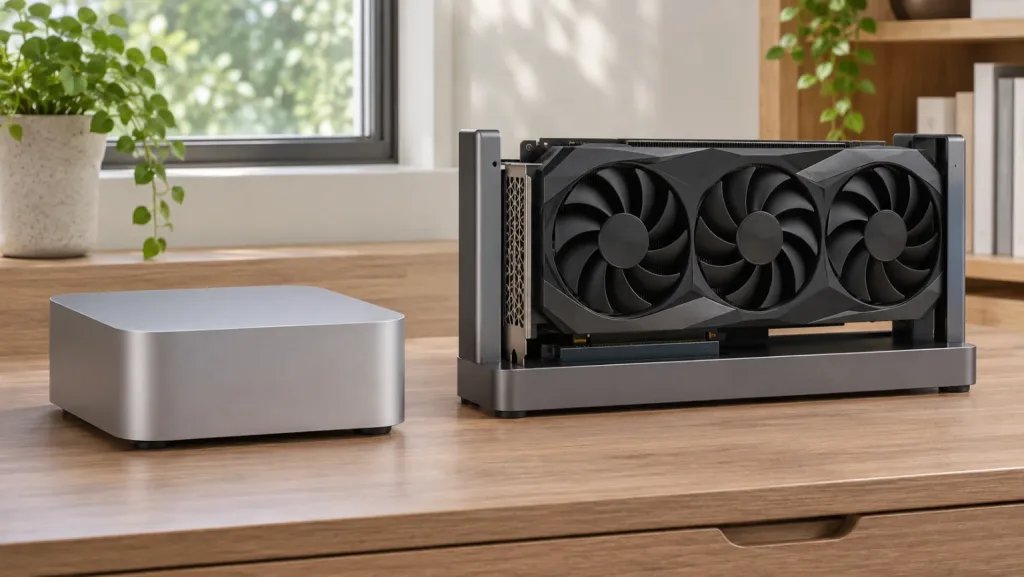
Illustration of an open graphics dock and its host.
An OCuLink eGPU makes the most sense when you already own a desktop graphics card and want to use it at a fixed desk. Before ordering a dock, identify four things: the PCIe connection on the mini PC, the space and power the card needs, the cable the dock accepts, and the display output you plan to use. A desktop-size slot on the dock answers only the question of where the card plugs in.
We would keep the first boot simple. Leave the host’s integrated graphics enabled, shut both devices down to make the connection, and check that the operating system detects the card before changing a driver or a virtual machine. Keep the host’s original monitor cable within reach. It gives you another way to see the desktop if the external card has no picture.
Fill in the compatibility sheet
| Part | What to look up | What could stop the build |
|---|---|---|
| Mini PC | Exact model and revision, a documented external OCuLink port, PCIe generation and lane count | A USB-C socket alone does not accept an OCuLink cable |
| Dock and cable | Host-side connector, supplied cable, supported power supply and startup instructions | The dock is sold without a cable or requires a PSU you cannot mount |
| Graphics card | Card length, height, thickness, mounting support and auxiliary power sockets | The card fits the slot but blocks a connector or cannot be secured |
| Power supply | Required connectors for both dock and GPU, GPU maker’s power guidance, approved cable set | Enough total watts on paper but no suitable GPU cable |
| Display | An HDMI or DisplayPort output on the external card and a compatible cable | Your only screen is attached to another GPU, hiding an output or routing problem |
| Software | Driver support for the specific GPU and your OS or application | The OS detects the GPU but the application cannot use its driver or compute runtime |
For example, GMKtec identifies the K11 connection as PCIe 4.0 x4 and specifies a powered-off connection. Minisforum describes the DEG1 as a PCIe 4.0 x4 dock that accepts ATX or SFX power supplies. These are two separately documented specifications. Neither manufacturer’s specification by itself confirms a particular combination of host revision, card and firmware. If you are still choosing the computer, compare our OCuLink host guide and K11 review. GMKtec interface guide and Minisforum dock specifications.
GMKtec also lists two tested docks for the EVO-T1, including the AD-GP1, and states that they need no special BIOS setting on that host. That is the kind of named pairing worth finding before buying components. If you own a different model, look up its own instructions. GMKtec eGPU support
Work out what the dock leaves for you to buy
An open dock can reuse your desktop GPU and power supply. Lay out the card, mounting hardware, cable and PSU before adding up the price. Leave enough desk depth for the display cable and enough clearance for the card’s power connector to seat without pulling sideways. If the only way to fit the dock under a monitor is to leave a heavy GPU hanging from its slot, choose a different support or location.
An integrated eGPU changes that calculation. GPD lists a built-in Radeon GPU and power supply for its G1. It also specifies that the dock’s USB ports and card reader require a USB4 host connection. The OCuLink cable carries PCIe traffic for graphics. Connecting a monitor to the dock does not make its USB devices appear on the host. Check the exact revision’s included cables before counting a dock as a one-cable desktop. GPD G1 specifications
If the mini PC lacks an external port, an M.2 adapter is a different build. Identify an available PCIe-wired slot, determine what storage you would lose, and check whether the manufacturer provides a cable exit and a supported cover. A SATA-only slot cannot supply the required PCIe link. Skip the adapter if the cable would cross a fan, hold the case open in normal use, or displace your only boot drive without a workable storage plan.
Connect the hardware from a cold shutdown
- Boot the mini PC by itself and confirm that its normal display works. Record the current graphics devices. Shut the OS down fully and remove power before installing hardware.
- Follow the dock manual to secure the card and attach the PSU connections. Use only modular cables approved for the exact PSU. Even physically similar connectors at the PSU end can have different wiring. Support the card before plugging in a monitor cable.
- With the equipment off, seat the OCuLink cable without twisting it. Attach a monitor to the external card and keep a second input or cable available for the mini PC. The mini PC still needs its own supported power source.
- Follow the startup sequence for your dock and host. A dock with a separate power switch and a dock with synchronized startup can behave differently. For a manual-start dock that calls for dock power first, turn it on before starting the host so the card is present during PCIe discovery.
- Allow the OS to boot. A missing firmware splash on the dock-connected monitor does not establish a failed PCIe link. Switch to the integrated display output and inspect the OS device list before touching the cable.
Treat sleep, hibernation and a blank screen as powered states. Shut down both devices before reconnecting the cable unless the exact combination has explicit instructions for live connection. ONEXPLAYER likewise specifies a powered-off OCuLink connection for its documented setup. Use the manual matching your equipment for power controls and driver instructions. ONEXPLAYER setup guidance
Verify detection, driver and workload separately
On Windows, open Device Manager and expand Display adapters. Check that the external card appears alongside the integrated graphics. A display adapter with an error code or a generic driver tells you that Windows can see hardware but needs further driver work. Install the appropriate driver from the GPU manufacturer, restart if required, then check the device status again.
To verify an application, select the external GPU in the application’s own device settings where available. For a graphics workload, Task Manager’s GPU engine column can help tie a process to a GPU. Match the GPU number to the model in the Performance tab. A moving graph for the desktop compositor alone does not show where your game or renderer ran.
On Linux, compare the following output before and after the powered-off installation. These are read-only commands from pciutils.
lspci -nnk | grep -A3 -Ei 'VGA compatible|3D controller|Display controller'
lspci -t
Record the external card’s PCI address and the driver listed as in use. To inspect the link, substitute the actual address in this example:
sudo lspci -vv -s 03:00.0 | grep -E 'LnkCap:|LnkSta:'Capability describes what a component supports. Status describes the negotiated link at that moment. A desktop card advertising x16 capability can correctly operate at x4 through an x4 host. Link speed can also fall while the GPU is idle. If performance seems wrong, observe it during a representative workload before concluding that the cable is faulty. Use the application’s device report to confirm which GPU rendered the scene or ran the compute job. Linux PCI utilities
Trace a failed first boot
| Symptom | First check | Recovery path |
|---|---|---|
| No picture on the external monitor | Check the selected monitor input and look for the card from the integrated display | If the OS sees it, check the driver and card output before reopening the dock |
| No additional PCI device | Check the host port documentation, dock power sequence and card power connections | Shut both ends down before reseating one connection at a time |
| Card detected with a driver error | Record the exact model, driver and error | Use the GPU vendor’s supported driver before changing host firmware |
| Desktop works but an application is slow | Verify which GPU the application selected and where its data lives | Compare the same workload and settings with output connected directly to the external card |
| Host boots alone but hangs with the dock | Confirm it still boots after a cold disconnect | Check the host and dock support pages for your exact revisions before attempting firmware changes |
A native Linux workload and a Proxmox VM have different ownership requirements. Establish that the host enumerates the eGPU first. Then decide whether the host needs to use the card or a VM will own it exclusively. For a VM, inspect IOMMU grouping and plan a way back to the host console before changing driver bindings. Our Proxmox GPU passthrough guide covers that next step.
Who should skip this setup? If you regularly unplug the computer while it is running, a compatible USB4 graphics solution may fit your routine better. If you need to buy the card, PSU, dock and mini PC together, compare the assembled cost and physical footprint with a desktop that takes the card internally. For the running-cost comparison, enter measured wall power for the whole system in the power cost calculator.
Frequently asked questions
Can I connect an OCuLink eGPU while the PC is asleep?
Shut the PC and dock down before changing the cable unless both manufacturers document hot-plug support for that combination. Sleep can leave the PCIe device powered.
Can a USB-C to OCuLink cable add eGPU support?
A passive cable cannot convert USB into a native PCIe connection. Choose a compatible USB4 eGPU solution or a documented PCIe adapter path for your host.
Does an x16 graphics card need an x16 host connection?
A compatible card can occupy a full-length slot on an x4 dock. The host and dock still limit the number of active lanes. Check the application with the card attached before deciding whether the narrower link suits your workload.
Where should I connect the monitor on the first boot?
Connect it to the external card and keep the original host video output available for diagnosis. If the dock-connected screen stays blank, use the host output to check whether the operating system sees the GPU.
How do I go back to integrated graphics?
Close the workload, shut down the operating system and remove power as directed by the dock manual. Disconnect the dock, reconnect the monitor to the mini PC and boot using the integrated GPU.